How to Suno Edit Lyrics in Suno AI
Want to fine-tune your AI-generated music to align with your creative vision? Suno AI empowers you to create amazing tracks, but you might need to tweak the lyrics to better convey your message. In this guide, we’ll show you how to suno edit lyrics effectively, offering engaging examples and practical steps to help you master lyric editing in Suno AI.
Preferred Method to Suno Edit Lyrics: Replace Section Feature
Suno AI has recently unveiled a game-changing “Replace Section” feature for Pro and Premier users, revolutionizing the way you can suno edit lyrics in your AI-generated tracks.
Capabilities for Suno Edit Lyrics
- Lyric Modification: Ideal for fine-tuning the words in your composition when you suno edit lyrics.
- Instrumental Section Addition: Incorporate musical interludes such as guitar solos or drum sequences as you suno edit lyrics.
Step-by-Step Guide to Suno Edit Lyrics
- Feature Activation: Right-click on your track or use the ”…” menu to access More Actions.
- Locate Replace Section: Navigate through Edit > Replace Section to begin your suno edit lyrics process.
- Edit Mode Initiation: Enter Edit Mode and select a 10-30 second segment for recreation. Existing lyrics will automatically appear in the Lyrics box.
- Lyric Adjustment: Modify your lyrics or insert [drum break] for an instrumental part as you suno edit lyrics.
- Section Regeneration: Hit the “Replace Section” button to apply your suno edit lyrics changes.
- Version Selection: Listen to both generated versions and choose your preferred one when you suno edit lyrics.
- Finalization: After selection, you’ll be directed to the Create page where a complete song incorporating your suno edit lyrics will be generated.
This innovative feature offers a more efficient and user-friendly approach to suno edit lyrics and incorporate instrumental breaks in your Suno-generated compositions.
Use the “Extend” Feature to Suno Edit Lyrics
Suno AI offers an Extend feature that allows you to add new verses or choruses with updated lyrics. This is a great way to suno edit lyrics without starting over entirely.
How to Use It:
-
Generate Your Initial Song: Start by creating your song with the original lyrics in Suno AI.
-
Select Extend: Choose the option to extend the song within the platform.
-
Add New Lyrics: Input the new sections or revised lyrics you want to include to suno edit lyrics.
Example:
-
Original lyrics:
[Verse] What I'll chase -
Desired change:
[Verse]
What a maze
-
-
Generate the Extension: Let Suno AI create the extended part of the song with your updated lyrics.
This method allows you to build upon your existing song and effectively suno edit lyrics without recreating the entire track.
Use AI Vocal Replacement Tools to Suno Edit Lyrics
There are AI-powered tools that can help with vocal isolation and replacement, making it easier to suno edit lyrics in your tracks.
Tools You Can Use to Suno Edit Lyrics:
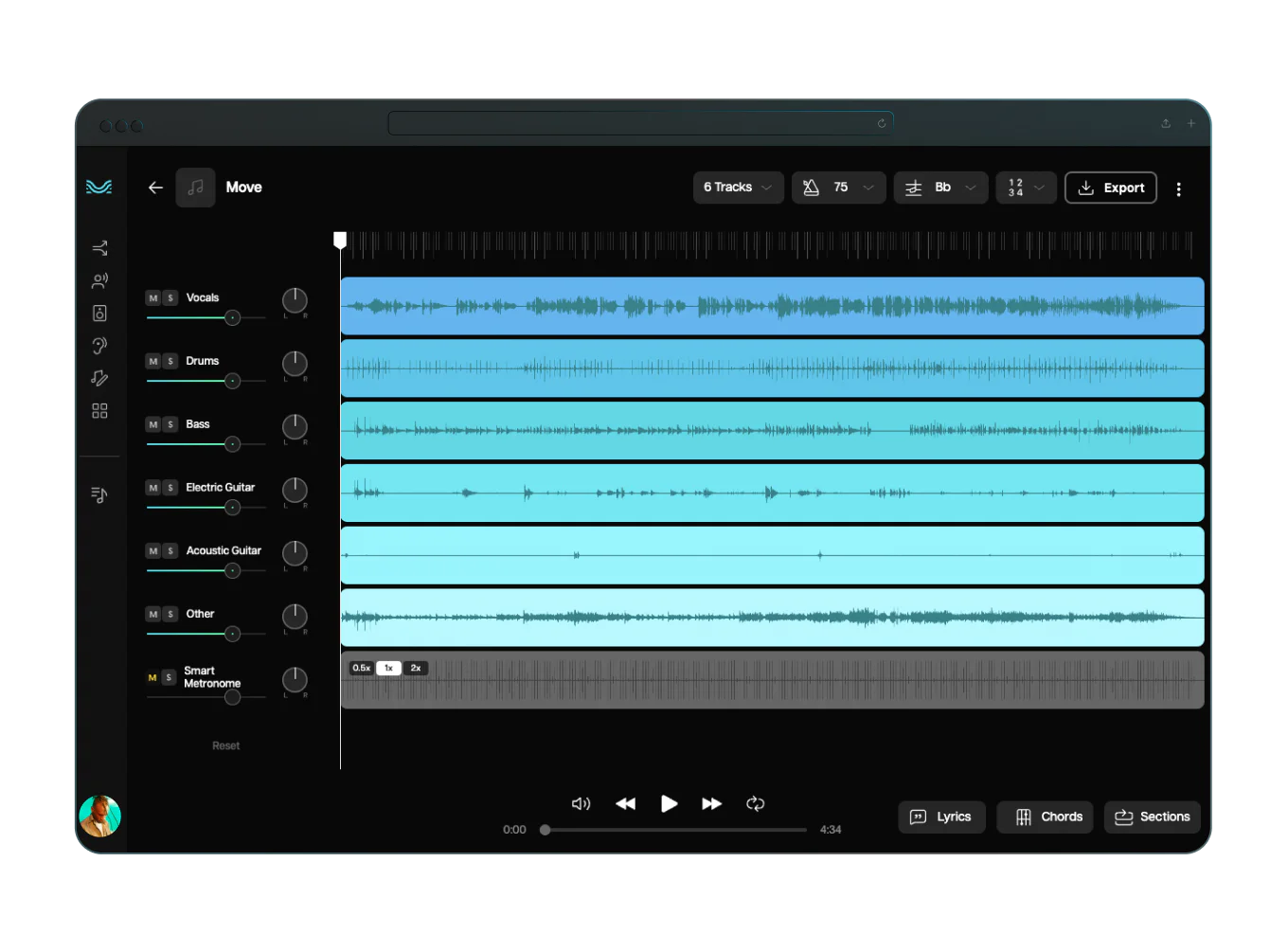
- Moises.ai: Separates vocals and instruments, allowing you to edit or replace them to suno edit lyrics seamlessly.
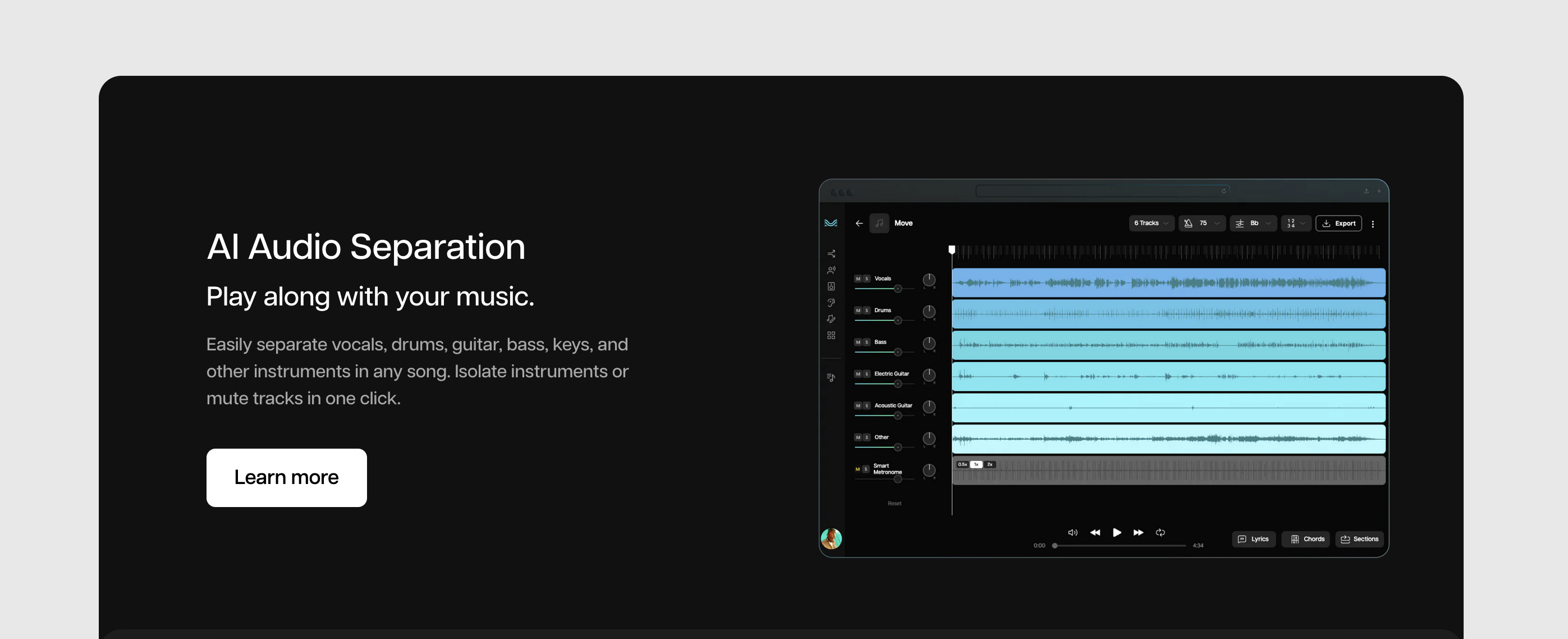
How to Suno Edit Lyrics with Moises
Moises AI-powered Suno edit lyrics tool not only transcribes lyrics quickly and accurately from songs in many languages, but it also lets you suno edit lyrics. With our editing feature, you can change the transcribed lyrics to make them just right for you.
⚠️ Please note, you cannot suno edit lyrics on their mobile app yet. You’ll need to use their Web or Desktop App. All your suno edit lyrics changes will sync across your devices. Remember, this feature is only available for subscribers.
How to Suno Edit Lyrics:
Open your audio file and make sure the “Chords” button is off, so you can see the “Edit” option when you click on “Lyrics.”
- Use the word section to navigate through the song.
- You can add or remove a line break above a word.
- Click on a word to suno edit lyrics.
- Use play, slow, and fast controls to listen to the track and check if the words match the timing.
- Click “Save” to keep your suno edit lyrics changes.
- Click “Undo” if you want to erase your last few changes.
- Click “Restore” to go back to the original AI-generated lyrics.
- Adjust the word boundaries to ensure they are in the right place in the song. You can also highlight a spot to add missing words.
If these instructions are tricky, we also have a video that shows step-by-step how to suno edit lyrics using our platform. The video can help make the process easier to understand.
- LALAL.AI: Extracts vocal, instrumental, and other tracks from audio, facilitating your ability to suno edit lyrics with precision.
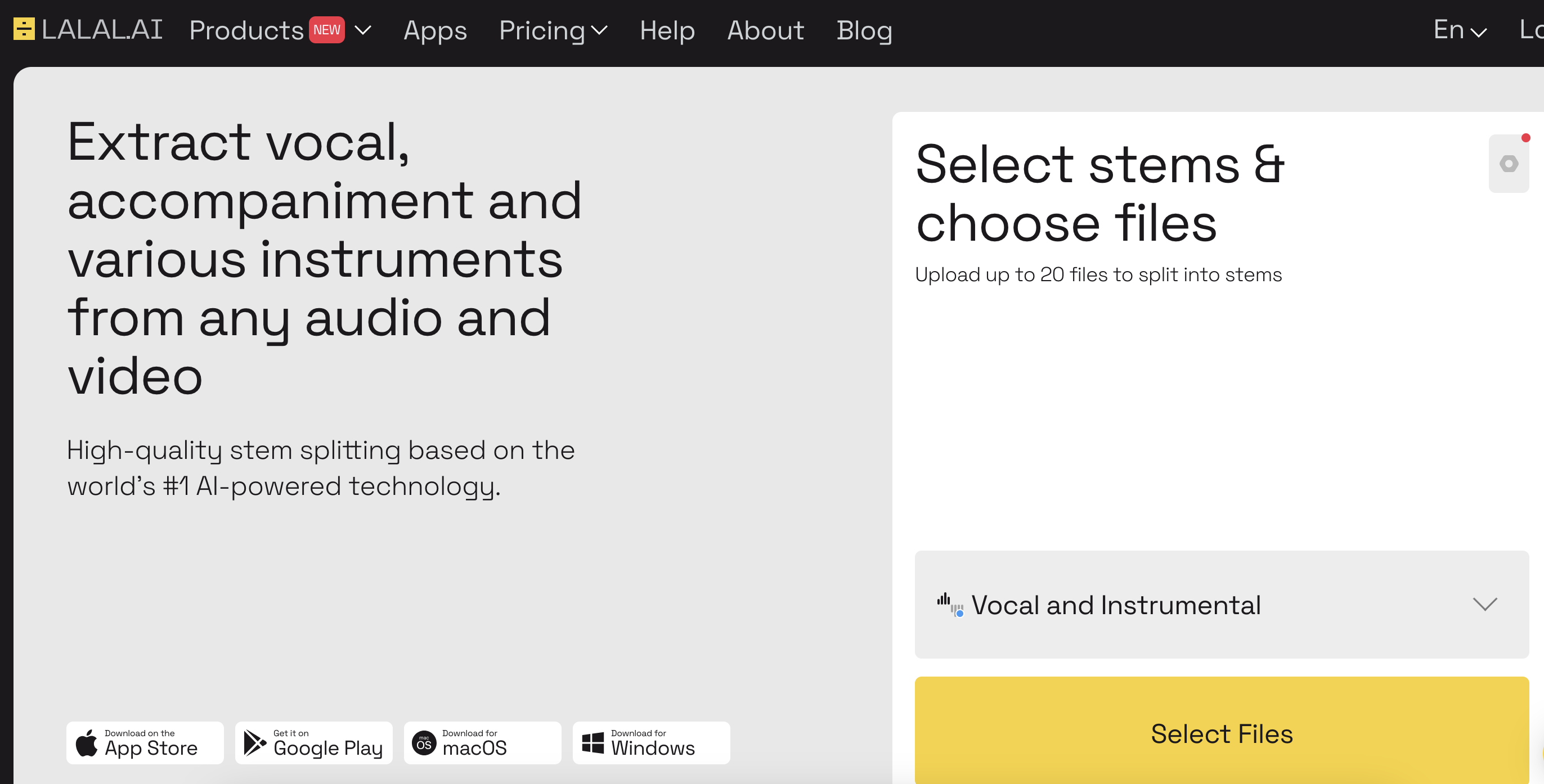
Process of Suno Editing Lyrics:
-
Isolate Instrumental: Use the AI tool to separate the instrumental from the vocals.
-
Add New Vocals: Record and overlay new vocals with your desired lyrics to suno edit lyrics effectively.
-
Combine Tracks: Merge the new vocals with the instrumental track to create a cohesive song.
Edit the Lyrics Externally to Suno Edit Lyrics
Since direct lyric editing within Suno AI might not be possible for specific parts, you can use external tools to suno edit lyrics after generating the song.
Steps to Suno Edit Lyrics Externally:
-
Export the Audio File: Save your Suno AI-generated song to your computer.
-
Use Audio Editing Software: Open the file in a digital audio workstation (DAW) like Audacity, Ableton Live, or Logic Pro to suno edit lyrics.
-
Remove or Reduce Vocals: Use vocal removal tools or plugins to create an instrumental version of your track.
-
Record New Vocals: Record yourself or a vocalist singing the revised lyrics to suno edit lyrics.
-
Mix and Master: Integrate the new vocal track with the instrumental. Adjust levels, add effects, and master the track as needed.
Benefits of Suno Editing Lyrics Externally:
-
Full Control Over Lyrics: You have the freedom to modify any part of the song when you suno edit lyrics externally.
-
Enhanced Sound Quality: Ability to fine-tune the vocals and overall sound to match your artistic vision.
Tips for Successful Suno Edit Lyrics
-
Be Specific: Clearly identify the exact words or phrases you want to change when you suno edit lyrics.
-
Maintain Rhythm and Flow: Ensure that your new lyrics fit the song’s meter and melody.
-
Use Quality Recording Equipment: If recording new vocals, good equipment will enhance the sound quality.
-
Experiment with Different Takes: Record multiple versions to find the best fit for your song.
Why Use Suno Edit Lyrics?
Editing lyrics allows you to personalize your music, ensuring that every word resonates with your intended emotion and style. By mastering how to suno edit lyrics, you can transform good tracks into exceptional ones that truly reflect your creativity. Whether you need to change a single word or rewrite entire verses, knowing how to edit lyrics in Suno AI empowers you to produce music that stands out.
Conclusion
While direct lyric infilling isn’t a feature in Suno AI as of now, you have several effective options to edit lyrics in your suno AI-generated music. By using the Extend feature, editing externally with audio software, utilizing AI vocal replacement tools, or regenerating the song with new lyrics, you can achieve the desired modifications to your tracks. Embrace these methods to suno edit lyrics and refine your music, fully realizing your creative vision.